The first step in arranging for fully automated updates is to place the file called "CSiEZ.exe" on the list of scheduled tasks as described below:
To begin:
Windows XP users refer to the following page: Creating a Task in Windows XP
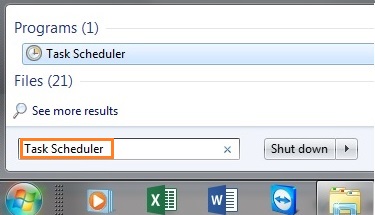
1) Windows 7-8 users: Right mouse click ( Win 10 users use Left mouse click ) on the Windows Start button and type Task Scheduler into the Search box.
Once you see the Task Scheduler, or Schedule Tasks entry appear in the results list, like this, click on it:
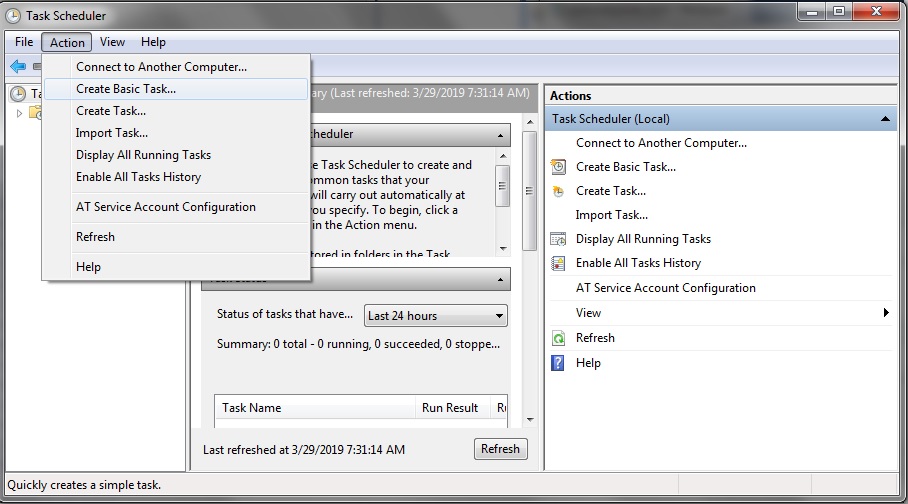
The following window will display for Win 7- Win 10 users: Click the Action menu and then select Create Basic Task
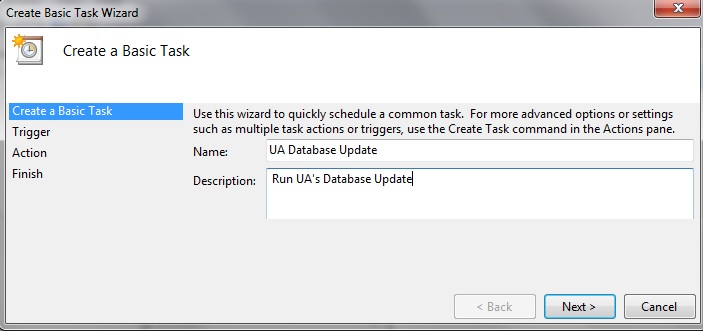
2) The following will be displayed, fill in the Name and Description as follows:
3) Click [Next] to select the frequency with which you want the task to be performed. This would typically be "Weekly", on a per day basis. The next screen will allow you to choose which days to update. Click the radio button next to your desired frequency, then click [Next] to proceed. The following displays:
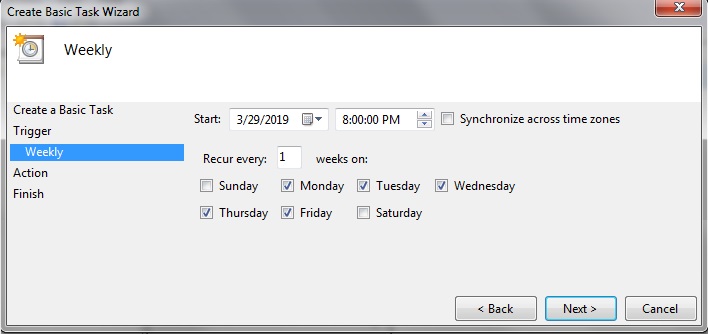
4) The above screen lets you set your desired data retrieval time (8:00pm EST for everything) and fine-tune the frequency of task updates per day. Make your selections and click [Next].
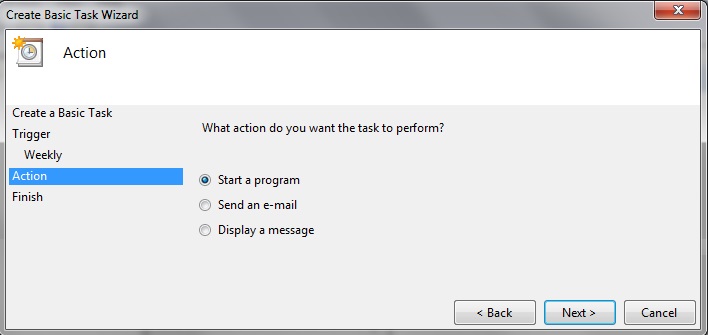
5) Choose Start a program from the following screen and click [Next]:
6) Enter the following specification (C:\UA\CSiEZ.exe) for the Program/Script, or click [Browse] to navigate to CSiEZ.exe if you've installed UA on a different drive or in a different directory:
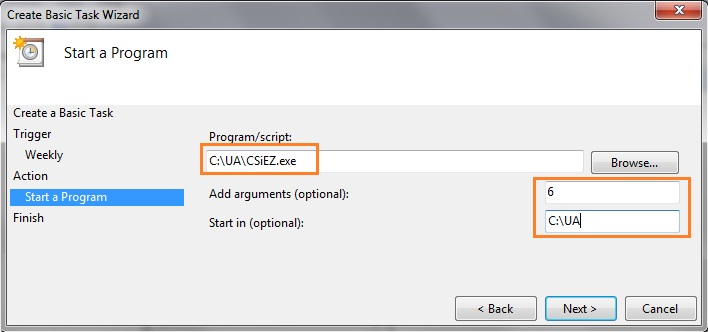
Add one of our enumerated data release schedules to the Add arguments(optional) field to command the software to wait for a particular data release. The number used corresponds to our data release posting schedule located here: Data Release Schedule
where a 1 will wait for the first data release. Using a 6 will wait, after the task is launched, for the moment the estimated 8pm EST data release is ready. If you choose to not specify any number, the task will immediately download what is available at the time it is launched.
Consult CSI's Data Release Schedule to discern the best time for your daily access, keeping in mind that CSI uses Eastern Time.
Add the UA installation directory to the Start In (optional) field.
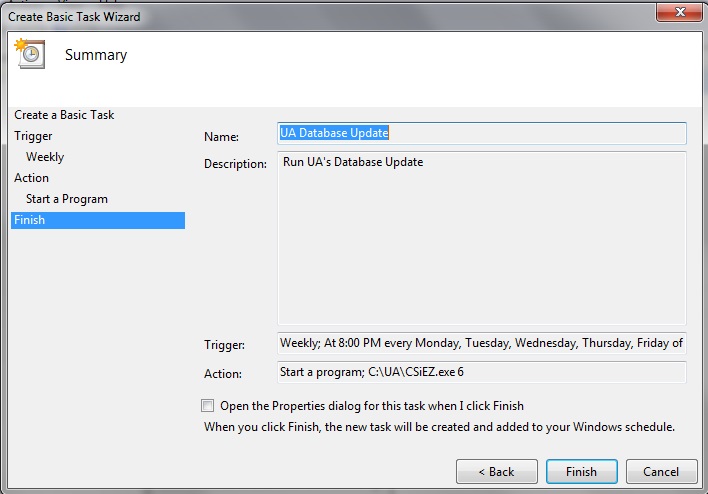
7) A final screen will display confirming your scheduled task. Click [Finish] to complete the scheduling.