Last Update : June 30, 2025 (Release 2.10.8.1042 BETA RELEASE)
IMPORTANT NOTICE: Do NOT uninstall your current UA for this upgrade. If you do, UA will no longer be usable, and a full reinstallation will be required, from here.
It is strongly recommended that you Backup your portfolio before upgrading in case there is an issue that requires a prior version to be reinstalled. Go to your UA Portfolio menu and select Backup Portfolio. This backup will be placed in your backup directory in a sub-directory using the date of the backup as the name, where it can later be retrieved and restored if necessary. Please contact customer service support@csidata.com for guidance if needed, and refer to this message.
Click here to download the 2.10.8.1042 BETA RELEASE upgrade, then install over your current version.
Click here to download the last stable upgrade (Build 1025), then install over your current version.
Upgrade Details:
Build 1042: ( June 30, 2025 )
- Search results appear much much faster when using the Market Spec factsheet. Be sure to tap the Enter key to initiate the search, otherwise wait 3 seconds for it to begin on it’s own.
Build 1041: ( June 24, 2025 )
- Improvements have been made to the Back-Adjusted and Nth Nearest Future Contract Roll Override Editor. Access to it has been made easier by adding a toolbar button.
- Improvements have been made to MarketScanner to enhance workflow, loading previous scan when opening, building chart templates that match scans.
- Chart printing is more precise.
Build 1029: ( Apr 28, 2025 – May 1, 2025 )
- Market Spec searching has been improved. You can now search the results of another keyword search by changing the keyword, or adding another. The search box turns green when searching subset results. For Compound Searches, use + to find Names containing 2 or more keywords, use a Space to find one of 2 or more keywords, and use quotes “” to find exact matches. Clear the search and wait a second to start over.
- Amibroker updates no longer fail when UA > AB Sectors/Industries do not match customized Amibroker Sectors/Industries.
Build 1017 – 1025: ( Mar 16, 2025 – Apr 3, 2025 )
- Minor charting flaws introduced in prior upgrade have been resolved.
- Indicator panels can be reduced in size, minimum height has been lowered.
- Exported historical Option expiry dates are now accurate, and verified,
- Changing indicator assignments when exporting indicator data with regular data are now immediately recognizing the change, and rebuilding the export with the correct indicator.
Build 1008 – 1016: ( Jan 29, 2025 – Mar 6, 2025 )
- Factsheet editing from any access point is supported, while still supporting multi-selection of rows.
- Gann and Fibonacci Fans now hold their angles when zooming in and out and changing periods. A new Time / Price measurement aid is provided to help with placement.
- Future days added to charts now persist when changing time periods.
- The MA Gann HiLo Activator indicator has been added to the library of indicators.
- The Basis Spread indicator has been added to the library of indicators.
- Extra _ removed from generic continuous contract symbol names.
Build 997 -1002: ( Nov 1, 2024-Nov 26, 2024 )
- Holiday Records can be appended to export files on the day of the holiday ( so it’s the last record in the file ) and filled with the previous day values. The setting to control this is in the ASCII/Excel Misc section of your portfolio settings ( Append Holiday Records … )
- Supplying the Last/Electronic Close ( Field e ) to all types of Backadjusted and Gann contracts is now fully supported. A flaw prevented them from being supplied when rolling by Days Before Expiry, or when using Date offsets.
- Also, Last/Electronic symbols are maintained in On Demand mode even when not contained in your portfolio, but needed for other symbols that are, and that use them – when ‘e’ is present as an exported field.
- Trading volume measurement ( in lots ) has been added to the Profit/Loss Line charting tool.
- The Fibonacci/Gann Time Zone tool now works across all periods D/W/M/Q/Yearly
Build 992 -996: ( Oct 10, 2024-Oct 28, 2024 )
- Underscores are removed from symbolized futures folder names.
- Updating Errors are now saved in logs and can be viewed in the Log Viewer.
- Tick Unit fractional components are now expressed as 1/32h ( & halves ), 1/32q ( & quarters ), 1/32e ( & eighths ), and 1/32t ( & tenths ) within FuturesInfo.txt files for TradingBlox compatibility.
- You can now select multiple symbols from different search contexts using Market Specs. Be careful not to mix stocks with futures ( there’s a warning ) as you can’t add stock symbols when creating backadjusted contracts. Also be careful not to mix futures with forex xrates, lme metals, cot or other non-contract data when building continuous contracts. You can add all of those separately, together, but you’ll have to go around again to add them after adding symbols for continuous contracts, or NFGs.
Build 990 -991: ( Sep 11, 2024 )
- A new ASCII/Excel field has been added: ~ represents unadjusted close % change values.
- Restoring deleted rows in Market Scanner now makes them re-available for repeat scans.
- Display Full History Chart View setting is now included on the charting right-click menu.
- Filtered out contracts are now omitted when adding historical contracts to new Nearest Futures Group (NFG) portfolio entries.
Build 986 -989: ( July 15, 2024 – Aug 16, 2024 )
- New TradingBlox Active Stock portfolios have been added, along with steps to aid configuration.
-
- Active S&P 500
- Active NASDAQ 100
- Active NYSE Stocks
- Active NASDAQ Stocks
- Active NASDAQ/NYSE ETFs
Find them under the Portfolio menu > Import Vendor Portfolio. Download any one or more of them once, and they will then be managed by UA, adding new IPO’s or constituents over time, and removing symbols when delisted, or dropped from an index.
-
- The Option Export Manager now allows you to specify a beginning contract when exporting by contract.
- 3 character Futures symbol file naming convention has been restored.
Build 983-985: ( June 3, 2024 – June 13, 2024 )
- Exchange Symbols sourced from SymbolSIM.adm, that have been imported using the Use Exchange Symbols setting, located in the Other settings section under Edit Portfolio, are now used when exporting Continuous Futures ASCII and Excel files that are set to use generic filenames ( _B, _N, _P, _G ) instead of the detailed naming convention.
- A contract counting flaw in the Proportional Liquidity Perpetual has been resolved.
- A day counting flaw in the Fibonacci Time Zone charting tool has been resolved.
Build 978-982: ( May 1, 2024 – May 15, 2024 )
- Stock Index Option exports now support combining with underlying stock index values
- UA now supports larger system fonts without having the interface distorted.
- UA now works with different system color themes without having as many color contrast conflicts.
- The factsheet is now editable when launched from the edit symbol form.
Build 973-977: ( March 16, 2024 – April 12, 2024 )
- Visual event alerts have been added to the Portfolio Manager to indicate when symbols in your portfolio have changed, been delisted, had dividends or capital gains issued, or have split. The visual alert is in the form of different line colors in the Portfolio Manager. When you see one, use your mouse to hover over the line to find out what the event was. A report is generated after each data download when any event has occurred to any of the symbols in your portfolio(s). They are also entered into the log for long term reference, as the visual alerts are temporary. This new feature is controlled by 2 new settings located in the Data Distribution section under Preferences:
- Display Portfolio Symbol Change/Delist/Dividend/Split Event Report
- Display Color Coded Symbol Events within Portfolio Manager
- Yellow = Symbol Change
- Green = Dividend or Capital Gain issued
- Red = Split
- Gray = Delisted
Build 971-972: ( March 6, 2024 – March 15, 2024 )
- The Option Export Manager symbol list is now sortable, and you can now filter inactive symbols.
- Weekly Future bars, or bars that are added after the current day, are now properly hidden when the Hide Price Bars setting is checked.
- The update timing log now displays the elapsed time and the software version for each daily entry.
- Clicking the chart on Market Spec entries for Option only Future Symbols no longer attempts to chart a continuous Futures contract, since non exists.
- BUY, LONG, SELL, SHORT cell coloring in MarketScanner is no longer limited by column index.
- Retracement tool has been recalibrated for improved accuracy.
Build 967-970: ( Feb 9, 2024 – Feb 26, 2024)
- The ATRP ( Average True Range in Percentage ) indicator has been further guarded against floating point errors.
- The Backadjuster setting for When Known has been restored to use the Roll Day difference between contracts. It had been changed to the Prior Day difference back in November. Please upgrade if you have Build 952 or higher.
- A new Backadjuster setting has been added that uses the Prior Day difference between contracts.
- Also, the Backadjuster setting of Raise Negative Series – Add a Fixed Amount to Make Non-Negative now raises the low point in the series to 5 ticks above 0.
- The Symbol Link utility now allows you to link related cash data history with new stock/ETF symbols.
- Toggling volume display, editing indicators, and switching indicator templates no longer resets the chart position in time ( improved upon in Build 969 ).
- You no longer have to hold the mouse button down when initially drawing trendlines ( but you still can ). This also applies to all the other charting tools.
Build 963-965: ( Jan 11 – Jan 25, 2024)
- The chart indicator trading signals have been improved with the addition of trade duration Time Lines as an alternative to Arrows. These are more visible when using them in indicator panels below the main price panel.
- FLG Long Gilt historical data prior to the Jun 1998 contract, when expressed in 1/32nds, now displays correctly in decimal when Historical Adjustments are not applied.
- The chart cursor can now be displayed as a dashed or solid line. Select either one from the toolbar menu where you select which style of cursor to use.
- Clicking the chart Reset button now first checks to see if the price scaling has been modified(either expanded or contracted); or whether the time scaling has been modified(zoomed in or zoomed out). If so, then it will only reset either or both of those to their default values. A 2nd click will reposition the chart to the most recent day. One click will reset the chart to the most recent day if both the price scale and the time scale haven’t been modified.
- Trading signals are now available for the MACD indicator, which includes the hypothetical P/L for each trade.
Build 956-960: ( Dec 12, 2023 – Dec 29, 2023 )
- The integrity of the Indexed database has been improved.
- Estimated volumes for lagged day volume futures, that have settlement range adjustments applied, are now reported without interference. They were previously being overwritten with the prior day volume.
- You can now customize the color and font of the Portfolio and Market Spec grids. These new controls are located in the General Preferences section.
- Monthly, Quarterly, and Yearly bars are now aggregated correctly when using the Future Days feature and switching between periods on charts.
- A new indicator has been added: Trading Risk. The Trading Risk indicator subtracts a simple moving average from the close, and multiplies it by the point value, to produce a value that indicates the current trading risk, represented in the native currency of the market in focus.
- The Hull MA is now included as a selection in the EMA Crossover indicators.
- Portfolio symbol counts have been added to Market Scanner’s source list when choosing Portfolios.
- Intermittent “Grid index out of range” error has been eliminated when applying predefined scans.
- Various interface improvements.
Build 946-952: ( Aug 19, 2023 – Nov 10, 2023 )
- Various user interface improvements.
Build 940-945: ( July 15, 2023 – Aug 18, 2023 )
- Quarterly, Semi-annual, and Yearly bars can be redefined to measure different periods other than the normal default spans of: Jan to Mar, Apr to Jun, Jul to Sep, Oct to Dec. They can be changed to: Dec to Feb, Mar to May, Jun to Aug, and Sep to Nov, or: Nov to Jan, Feb to Apr, May to Jul, Aug to Oct. Semi-Annual, and Annual bar months can be changed to all other periods as well. For instance, Yearly bars can end in July, instead of December. These new settings can be found within the Aggregate Data section of your Portfolio settings.
- Adding Future Days to charts has been reworked to exclude adding record edits that can be seen in export files when the chart is built from a portfolio export. This means Future Days is now limited to charts. If you want extra days added to your export file, use Add a Day repeatedly to accomplish this. Add Future Days is more useful when adding a month or more to your charts, to project trendlines, etc, when extending right, like a ray, won’t do.
Build 935-939: ( June 30, 2023 – July 14, 2023 )
- Market Scanner now allows you to Filter out sets of symbols contained in Exchanges, Portfolios, Sectors, Stock Indices, and Watch Lists. This new feature is located on the Filter menu.
- Market Scanner now forces the display of Charts, rather than the data table, after fresh new data is loaded from the source.
- Abbreviated data sets made from linked symbols, that end before the link date, now successfully complete.
Build 927-934: ( May 12, 2023 – June 23, 2023 )
- The ATR indicator now includes signaling capabilities.
- A Duplicate Portfolio function has been added to the Portfolio Manager
- Continuous Contracts recognize contracts that trade past the delivery month, no longer rolling too early.
- A lingering flaw with the Symbol Linker was discovered when setting up a link that rolls on V/OI. The target date was incorrectly determined when the target market includes a cash contract. This has been resolved.
Build 921-926: ( April 22, 2023 – May 12, 2023 )
- Symbol Link support for Merge on Contract has been correctly implemented.
- Decision making logic used to decide whether to recapture the previous day has been made smarter.
- The Roll Schedule process no longer interferes with previously charted series when running updates.
- Price record deletions no longer flag exported ASCII/Excel data records with processing field codes of -2 prior to clearing them.
- Now acknowledges contracts that trade past delivery month when using Nearest Future Groups in your portfolio(s).
- Weekly files set to end on Mon, Tue, Wed, or Thu are now successfully generating bars across periods when a holiday exists at the beginning and/or the end of the period.
Build 916-920: ( April 6, 2023 – April 21, 2023 )
- The Roll Schedule Report file can now be generated without having it displayed, as long as portfolios are selected to be checked.
- The Date scale on charts now projects into the future, running the length of the Right Side Margin – the adjustable blank space between the last date of active data, and the Price Scale.
- Option exports can now include the OHL along w/ the Close of the underlying contracts.
- The Symbol Link utility operates more smoothly, functional inefficiencies were eliminated.
Build 912-916: ( March 7, 2023 – April 6, 2023)
- The Roll Schedule Report has been modified to report Volume and/or Open Interest rolls on the day the Volume and/or Open Interest of the nearest contract are surpassed, regardless of whether the roll timing is set to When Known. This will give you an advanced notice to roll, and keep you in closer sync with your back testing results.
- The Semi-log chart scaling shrink/expand feature has been improved.
Build 909-911: ( February 28, 2023 – March 6, 2023)
- A Historical Overlay Chart tool has been added to the charting tool lineup that allows you to add 1 or multiples of any type of contract, or stock to your charts, no matter what time period it was active. They are not tethered to the dates of the main chart like the other overlay feature. You can maximize these to cover the main chart, and scroll back and forth to search for patterns, or keep them small as a companion chart – they will be updated each day if they are still actively traded. You can find this new feature on the charts toolbar, right after the previously existing Overlay chart button, which has been renamed “Add a Data Aligned Overlay Chart”. The new button is named Add a Historical Overlay Chart and appears as:

Build 906-908: ( January 27, 2023 – February 2, 2023)
- A Futures with Cash tab has been added to Market Specs to help locate them easier.
- COT data now includes Weekly Volume and Open Interest when charted independently.
- You can now roll n contract months out on V/OI while still using the front month to determine the roll by specifying -n in the Min(imum) Contracts Out field.
- The Roll Override table is now sortable.
- A period(.) separator has been added to ASCII/Excel date formatting options.
- The Last Date in Market Specs is kept current for active symbols, for reference, when operating UA in On Demand Mode.
Build 905: ( December 23, 2022)
- New setting added to ASCII Files section to allow file extensions to be specified in Uppercase.
- New setting added to ASCII/Excel section to restrict or not restrict Market Statistic symbols to 7 fields.
Build 896 – 903: ( December 12, 2022)
- Scrolling within Portfolio Manager with Up/Down keys has been changed from frame scrolling to a scrolling cursor with typical multi-selection capabilities.
- @DJIA-I, @DJAA-I, @DJTA-I, @DJUA-I are no longer restricted to exporting DOHLCv fields only.
- Automatic Factsheet refreshing has been suspended when refreshing Futures databases, it’s no longer necessary.
- Other minor improvements in program flow.
Build 894-895 ( November 22, 2022 ):
- If you like using the mouse wheel to scroll, you’ll want to upgrade your UA. A malfunctioning handler was replaced with a new one that’s now used in the portfolio, data, and fact sheet tables.
- A rule was added to prevent continuous contract pre-emptive V/OI rolls on 2nd trigger with markets that have lagged V/OI reporting, when roll timing is set to Align w/ Data. This caused a delayed roll issue when NOT using the Walk Forward V/OI Detection setting. This upgrade resolves that issue. We recommend that you always use the Walk Forward V/OI Detection setting when rolling on V/OI, but if you’re not, you’ll want to install this upgrade for accurate results.
Build 893:
- An Arc and an Arc Retracement tool has been added to the charting toolset.
- Acknowledgement of the 3 month SONIA SO3 trading 3 months beyond the expiry month has been made within all continuous contracting methods.
- Exporting market stat symbols to Amibroker has been accomplished.
- Gann Times Zones have been added to the Fibonacci Time Zone charting tool as an option.
Build 890 – 892:
- Market Scanner indicator column identification has been improved when moving multiple result columns around to different locations, mixed with other indicator results.
- Various other Market Scanner usage improvements.
- The PRO format now supports Weekly/Monthly/Quarterly aggregate file updates, as well as the ability for them to coexist in one export folder.
Build 888 -889:
- Overlay Candlestick Up bars are now hollow when the main Candlestick Up color is set to the background color.
- When Candlestick Up and Down outline colors are the same – Up bars are painted in a color that contrasts to the Down bars when zooming out to widths that can only support the outline colors, and not the Candlestick body ( Pixel widths less than 3 ). This is done so they can be differentiated.
- When using Preconfigured continuous contract settings during portfolio imports within Market Scanner, the software now honors the contract months to include, where before it would include them all.
- Market Stat symbols ( ISSA-I, MKST-I, NASD-I, NQHL-I, UVDV-I ) now include accurate field names when exporting with a header record in ASCII and Excel format.
Build 877-884:
- Selecting a portfolio using the selection box in the Portfolio Manager now transfers focus to the symbol list so you can begin to scroll through the list without having to first select it, too.
- The Hull Moving Average has been added to the standard indicator library.
- The Spread indicator has been modified to provide the ability to multiply each symbol’s pricing by a +/- decimal number.
- Express Spread values in decimal when used with markets of different precisions.
Build 870-876:
- Stock Industry table has been updated.
- Further improvement with Price scaling on charts.
- Chart table vertical mouse scrolling is more responsive.
Build 867-868:
- Drawing tools over the scale region no longer causes a conflict with the expand/contract scale feature.
- Price scaling has been updated to calibrate vertically in formation across all 5 available charting panels. Previously, vertical scale delineator line placement was reliant on the maximum width of the numeric scaling values of each panel, separately, causing them to be out of alignment most of the time.
Build 865:
- The reliability of refreshing databases from our servers has been improved.
- The reliability of exporting templates of indicators to ASCII and Excel files has also been improved.
- A toolbar selection control now provides different types of chart mouse cursors that can be displayed.
- Chart cursor positioning responds better when many decades of history with many indicators are displayed.
Build 860-864:
- Added the COT Movement Index to our indicator library.
- Added an OHLC spread setting to our current Spread indicator.
- Resolved a flaw causing a memory fault when exporting indicator template measurements along with price data.
- The Price/Time chart cursor options have been combined into 1 toolbar button.
- You can now expand and contract a chart’s Price Scale by moving the mouse up and down the scale on the right side of the chart while holding the left mouse button down.
Build 854:
- Charts that are built automatically when you open UA can now be automatically tiled using the new setting under Chart & Data Preferences named Tile Charts.
- Prices still display now even when the price cursor is deselected, providing the option of hiding the crosshair lines.
Build 850:
- Values in chart tables can be changed.
Build 848:
- A flaw found in MarketScanner when importing Nth Nearest Future contracts has been eliminated.
Build 847:
- RSI, Stochastic RSI, And Money Flow Index indicators can now take on different colors when they move into the Overbought and Oversold regions.
Build 844:
- Appending price data expressed in points with no delimiters is restored in the Excel format.
- Wealth-Lab has been added as a recognized software vendor. Visit them at www.wealth-lab.com.
Build 842:
- Reactivating stocks using modify change records is implemented.
- A flaw was detected where expiry dates exported to files as column information were being decremented by 1 day. This condition has been resolved.
- Line selections in Portfolio Manager now include the Symbol and CSI # columns.
Build 840:
- Data gap detection in ranked stock exchange portfolios is handled more appropriately.
Build 838:
- The Processing Request form is now less intrusive when displayed, it should no longer interrupt multitasking.
- The 2nd layer of verification is used when using the setting to include Put/Call Ratios as it was causing unnecessary server file refreshes.
- Displaying the Market Spec factsheet no longer forces the main interface to minimize.
Build 834-836:
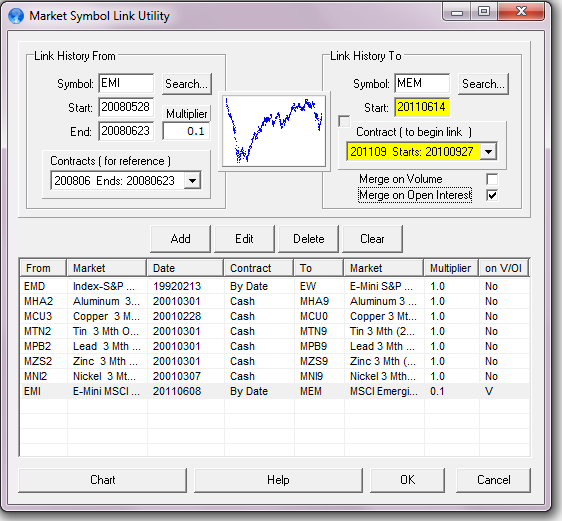
- Includes and enhanced Symbol Link Utility.
- Back-Adjusted contracts with only 1 delivery month specified now function correctly when specifying a roll on calendar or trading days prior to expiration, strictly or when rolling on V/OI.
Build 830:
- Weekly, Monthly, and Quarterly’s can now be set to end on the last respective trading day of each period.
Build 820 – 829:
- The ASCII import feature no longer tries to detect the import file format as it can sometimes force incorrect results.
- The TradingBlox FuturesInfo and ForexInfo files are not longer regenerated unless the Make TradingBlox compatible setting is checked on the Portfolio settings ASCII/Excel File page.
- Option Export Manager will now export complete contracts, from the beginning, that expire after the date you specify as the exporting start date – when set to Export to Files By Contract.
- The latest upgrade restores the decimal point ( or ^ ) to data expressed in points where the decimal point ( or ^ ) is specified as the fractional delimiter. This effects export files, charts, cursors, and tables.
- CSIQ format will now try to better handle stock symbols that are greater than 8 characters by at least matching the ticker listing with the file name, and by removing indices notation.
- Full History window resizing is restored to the case where height is maximized; it previously would not respond to attempts to reduce it’s height.
- Data display refinements, highlighting, abbreviations.
Build 818:
- Added Cut (Ctrl-U) , and Move To (Ctrl-M) features to the portfolio right-click menu. Use these to move items to a different portfolio. Cut (Ctrl-U) can be followed by Paste (Ctrl-V), or by Move To (Ctrl-M), however Move To (Ctrl-M) can be used all by itself.
Build 815-816:
- Ratio adjusting Swaps that move thru zero are now handled correctly.
- Software will no longer rewrite expired contract files that are chronologically reversed, unless a historical correction is issued.
Build 812-814:
- UA charts no longer freeze when changing portfolio settings.
- COT Position indicators are now displaying latest measurements
Build 811:
- UA is now successfully able to download option database files that are greater than 125MB. Apache surprisingly limits file downloads to 125MB for DSL connections.
- Last/Settlement price has been added to the chart price cursor crosshair.
- Handling of stock symbols that begin with numbers and have a period ( . ) in them are now handled correctly in the active stock portfolios. Examples: 2002.Q-L, 2882.QA-L, 24119.I-L
- Feature to delete a bad error correction file has been added to the Ctrl-F utility, only to be used for emergency purposes as directed by customer service.
Build 800-807:
- Aggregated High/Low Dates are now provided in charting and export data tables by including a ‘d’ in the output Field definition setting.
- Adding Future Days feature now supports adding future years, in the same way, using the calendar. UA had previously had difficulty with this when adding many years.
- An additional extension has been added to the chart retracement tool.
- Charting tools now function correctly when weekends are inserted, and coordinates are preserved when switching between time periods.
- Custom settings now persist when adding additional Retracement tools to charts.
Build 780-794:
- On-Demand updating is now available, where the only daily data processed locally is for the symbols that reside in your portfolios, along with FOREX currencies. Any new symbols added will be synchronized with a server copy. This new feature’s setting is located under General Preferences as Use On Demand Mode.
- Chart Preview Icons have been added to the Portfolio Manager. The period for these can be 10 Days, 1 Month, or 1 Quarter, and can be set by clicking the right click menu and selecting your choice under Change Chart Preview Icon Period. They can be turned off there, too.
- Heikin-Ashi charts are now available.
- New portfolio level control available to limit the number of trading days exported to your files, in case you always want to see, for example, 22 days of the latest trading data. This is located in the General page section of Edit Portfolio Settings.
Build 739-765:
- A new indicator has been added that allows you to import data from external CSV formatted files – Import Indicator will chart and/or export this data along with your price data.
- Weekly, Monthly, Quarterly data has been restored to the API when requesting non-daily period data.
- Hidden Indicators on charts can be briefly viewed when hovering the mouse over the Show/Hide control assigned to associated indicator.
- Semi-Log chart expansion/contraction has been improved.
- A right-click menu is now available on all charting tools for use when the tool’s toolbar is not easily accessible within the chart.
- Improvements were made to the chart scaling algorithm to handle situations where price fluctuations are small and where the maximum value rises slightly above the top tick.
Build 734-738:
- The CSI Seasonal Index can now be viewed and exported in W,M,Q, and Yearly format.
- Corner Style option added to text preferences ( Bevel or Sharp )-
- Use Enter key or Ctrl-Shift keys to cycle indicators –
- Duplicating locked tools now unlocks the duplicate –
- Trend, Horizontal, and Regression Lines can now extend past the last day and into the future ( tool preference setting ) –
- Andrew’s Pitchfork now functions w/ Seasonal indicator charted –
- Currently charted indicators are updated when the daily database is updated –
- NFG’s w/ history now includes months previously skipped when rolling 1 or more months prior to delivery month.
- Indicator profit/loss measurements across viewable period in charts are updated as you scroll back in time.
Build 725-727:
- Copy/Cloning of in-chart tool objects like trendlines, fans, pitchforks, and all others has been improved. Use the new copy button on the object toolbar, or press the Ctrl key, and then, using the mouse, left click on, and drag the new copy to a new location on the chart.
- Option expiry dates are updated with estimated dates when actual expiry dates are not yet known internally.
Build 721-723:
- Various improvements to charting, portfolio management, and export features.
- Indicators derived from using the outputs of other Indicators are no longer as restricted to a certain available set, depending on build order, when creating Templates.
- Precision price setting of charting tools has been restored. The change to price offset positioning caused past editing attempts to be ignored.
- n# ASCII/Excel field now accounts for Expiry Date fields(X), when used, when extending out past the available contract data.
Build 711:
- Improved ASCII Import interface, which includes a new feature to synchronize portfolios with symbol import lists.
Build 708:
- Put/Call Ratios can now be added to supplement ASCII/Excel Futures contract export files, using r and R fields. Previously they were only available to strictly Put/Call Ratio series.
- Put/Call Ratios have also been added to the Indicatory Library.
- The Raschke 3-10 Oscillator has been added to the Indicator library.
- You may now specify more than one overlay series using the new Overlay chart toolbar icon.
- You may now Select/Copy/Paste a set of Continuous contracts back into the same directory with changes allowed to be made in the process. Example: Select/Copy a set of 1st Nearest Futures, and then Paste them back in – a conflict dialog appears: Check the New Items in the list, then click Change Settings to Add New Items and change the contracts to 2nd Nearest. Click Ok to Add them into the same portfolio.
- Date cursor now floats above contract roll, split, and dividend indicators.
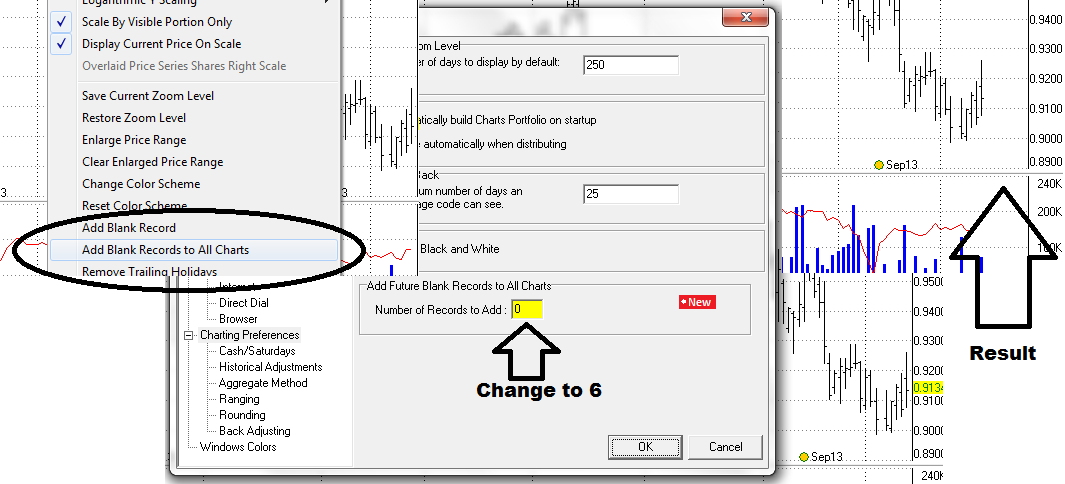
- A Yearly chart history button has been added.
- The Fibonacci Times Zone tool has been recalibrated.
- Current Indicator values can now be displayed on the chart scale.
Build 685:
- The Futures Backadjuster now correctly rolls by number of trading days prior to expiration dates when also using Minimum Contracts Out values that are greater than 0.
- Stock symbols can now be included within, or excluded from, any portfolio using a new feature located within each Portfolio’s Settings [ ASCII/Excel Misc ] page. These symbols will survive thru Active Portfolio ranking management, unless they are excluded, contained in the active exchange, and become delisted. Otherwise, excluded symbols will visually remain in an assigned portfolio, color coded, but there will be no export files assigned to them.

Build 684:
- Appending error within CSI Format has been corrected
- TSXV added to the Active Stock Exchange Ranked Portfolio Manager.
Build 683:
- UA now provides century dates to Amibroker. After upgrading, go to UA’s Preferences > Amibroker Database page and make sure one of the Refresh History selections is checked, as the AB database will have to have it’s dates reformatted.
- UA now manages TradingBlox™ StockInfo files, which will reside within your portfolios data directory. This reduces the need to update your TB catalogs, and can be used with UA’s Managed Stock Portfolios to follow all active stocks within the exchanges we cover. To use this feature, check the new selection box on the Portfolio Settings > ASCII\Excel Files page.
Build 648-655:
- New Font control added to General Preferences for Portfolio Manager and Market Spec Fact sheet.
- Fields highlighted in chart table where HLC pricing differs from published values, according to daily settlement range setting.
- Other assorted bugs fixed.
Build 638:
- New Ratio Spread indicator has been added to the Spread tool.
- New Feature to include all available contract history to Nearest Futures Groups.
Build 630:
- Market names now use – instead of _ when exported into file name.
- [x] close tab button no longer disappears when multiple portfolio rank views overflow the screen.
- Dividend Growth ranks always use the Most Active metric.
- Dividend Growth ranks gather top performers, w/ Dividends, then ranks Most Active.
- S&P 500 Dividend Aristocrat Index gathers top performers, then ranks by Most Active.
Build 619-628:
- Price cursor now disappears when mouse is moved off chart.
- Stock Index Component Portfolios can now be ranked.
- New ETF Rank choices by Exchange, World, or US only.
- Multi-Period Ranked Portfolio support now in effect.
- Easy access to NEW Ranked or Stock Index portfolios by clicking the Wizard toolbar button.
- New Ranking by Sector metric has been added.
- Now allows the ASCII/Excel export of aggregated indicator results.
Build 610-618:
- A Ranked Stock Exchange Portfolio feature has been added to measure the markets in several different ways. Click New Portfolio and explore the possibilities by clicking the New button off to the right where it says New Active Stock Portfolios. For more details click here.
- In addition to that, all stock portfolios can now be managed, meaning as stocks delist, the software will automatically remove them for you, and place entries in a log visible in the Log Viewer.
- Handling of Stock Fundamental Shares Out and Market Cap have been optimized for performance, meaning it now takes a fraction of the time to update this data when included in export files.
- A new Market Capitalization indicator has been added for charts.
- Database updating performance has been improved.
- The Continuous Futures Roll Schedule Report now accurately provides the contract, volume, and open interest values at the roll for those entries that have recently moved to the next contract 1 or more days prior to the current day of the report.
- When Adding symbols to a portfolio, the Select Data Series Symbol field will now allow virtually unlimited numbers of comma-separated symbols to be copy/pasted into it at once.
- More detail has been added to the log viewer.
- Other minor improvements made and glitches eliminated ( including EAccessViolation & EDivByZero while distributing ) .
- EEI and FEI charts now scale within bounds when ranging between 99 and 101 points.
- Shares Outstanding and Market Cap are now available for the TSX and VSE exchanges.
Build 588:
- Price Up / Price Down Arrow added to price cursor readout.
- Price Up / Price Down bar colors are implemented. Set Main Price Up/ Main Price Down to the same color in Color Setting to revert back to prior display method.
- Volume Up / Volume Down bar colors are implemented. Set Volume Up/ Volume Down to the same color in Color Setting to revert back to prior display method.
- Volume scale on left filled when left side scale is visible.
- Volume scale on left is hidden when no left side scale is needed.
- Regression Channel cursor along left edge redrawn when adjusting right edge.
- V/OI scale filled in on left side of chart when dual scales are displayed, unless another Indicator present.
- Charts are now re-proportioned when scrolling thru portfolio charts with multiple indicators are displayed.
- Price cursor lands on last day when charts are displayed, and retains position when scrolling thru portfolio.
- Indicator value labeling has been abbreviated.
- Put Call ratios now export to Excel when regional settings are set to use commas for decimals.
Build 585:
- Futures+Options choice allowed on all 7 new COT indicators.
- Histogram option added as line display for indicators.
Build 582-584:
- Charting tools now include an Andrews Pitchfork.
- Expiry Date Rules are now available in the Options Export Manager.
- Database Reports can now include Options alongside Futures or Stocks where available.
Build 574-578:
- COT Net Positions and Long/Short Positions indicators have been added to the Standard Indicator library.
- LME correction handling has been corrected.
- A malfunction that is highly evident when adding large quantities of symbols to a portfolio has been remedied. This caused great lags during the insertion of symbols, and would trigger unnecessary refresh requests. This bug was introduced in build 546, so all customers with builds equal to or greater, are urged to upgrade.
- Charting objects are saved, and now cleared, when scrolling charts.
- Candlesticks hold appearance better now when zooming out.
- Shares Outstanding are now expressed in Lots, Market Cap is still expressed in Millions.
Build 550-561:
- Support for markets trading in 32nds and quarters of 32nds.
- A chart Invert shortcut button [ INV ] has been placed on lower charting toolbar.
- A newly designed spread chart feature has been added, with a shortcut button placed in lower right section of charting toolbar, next to the new [ INV ] Invert button. Newly created Spread pairs can then be added to your portfolio for future charting reference, and for exporting the spread results.
- Selection list is sorted by symbol.
- Ability to chart spreads of Price vs an applied Indicator is functional.
- Ability to chart an Indicator applied to spreads of 2 Price series is functional.
- Spread description now includes instructions.
- Other minor interface improvements.
Build 547:
- Option Export Manager now updates nearest contract strikes properly when formatting file data By Contract.
Build 545:
- UA now allows you to apply a chart Indicator Template ( which can contain up to 32 indicators ) to your portfolio symbol entries, so that all indicator results can be exported along with
symbol data. This will work with ASCII and Excel formats only. This new feature can be found by clicking the [ I ] button located in the lower right-hand corner of the Select Data Series dialog interface. Access this dialog by Editing or Adding symbols. Your selection here can now also be applied to all symbols within your portfolio(s) by selecting: Assign This Indicator to Portfolio.(Optional). - To learn how to create a chart Indicator Template, view the following instructional video which provides a demonstration around the 8:00 minute mark: UA Charting Demonstration
- This feature requires an * to be present at the end of your portfolios ASCII/Excel Field specification, as the last field to be exported, as there will be multiple fields, each of which will use enumeration related to each indicators name, parameter(s), and position within the table. You will also want to select the Include Header… option on the ASCII/Excel portfolio settings page when using this feature.
Build 538:
- Floor spec has changed to (RTH), Electronic to (ETH). Appropriate filtering has been accounted for when viewing Market Specs, when building Historical Portfolios using the Wizard, and when transferring RTH Opens and Settlements to ETH symbols, when configured to do so.
Build 536:
- Market Scanner multi-selection of multiple pages within the symbol list is now functioning properly.
Build 531-532:
- Column layouts in UA chart’s Data Table can now be customized using the new feature located off the table view’s right-click menu [ Customize Column Layout ].
Build 530:
- A new fractional delineator decimal point option has been added, a “,” comma, to represent the decimal point in order to comply with international conventions where it’s used. This is available in the ASCII and Excel formats only, and made available to select in the Data Display sections of Edit portfolio and Preferences interfaces.
Build 528:
- Stop date setting within each data series is no longer ignored if used to override current setting of As Available.
- 0 is caught and warned against usage when entered within Days From setting within the Data Series Selection Dialog.
- Weekly series are updated, rather than rebuilt from scratch, for up to a month, if your data has not been updated within that time frame.
Build 527:
- Weekly, Monthly, Quarterly, and Annual aggregated exports are now updated with the latest recomputed data, rather than being entirely rebuilt after each data update, unless rolls during back-adjustments, whether for futures, or new stock splits/dividends, are detected. Historical corrections will also trigger rebuilds, as well as other custom settings that may be used. But in general, they will be updated to reduce your overall daily download time when using these in your portfolio. There is a global setting that controls this located in the Preferences > Aggregate Data section.
- CSI, CSIM, and Metastock formats can now be configured to export holidays that contain the prior day prices, or the prior day close. This control is located within Edit Portfolio on the CSIM/Metastock Format page.
- The Amibroker export format can now be configured to export holidays that contain the prior day prices, or the prior day close. This control is located within the Preferences > Amibroker section.
- The Price Channel indicator now allows the option to use the Highest and Lowest Close, rather than the Highest High, and the Lowest Low. This is located on the indicators configuration interface.
- Editing portfolio items that are currently charted, now always reflect those changes immediately when applied. Previously, when changing a futures series from one type of continuous contract to another type, this step was missed, as the software was looking for the previous type of contract among the open charts.
- An issue with Back-Adjusted and Nth Nearest continuous contracts was discovered that could inadvertently and unexpectedly roll out to a far contract when using V/OI, has been eliminated. In most cases, this had limited exposure, but it was observed to happen under certain conditions.
For this reason alone, this upgrade is highly recommended. - Several charting alignment issues have been cured.
- The Zoom Box Magnify has multiple levels of depth, which can then be incrementally backed out from by clicking the button twice.
- The download countdown is reduced from 10 seconds to 5 seconds, enough time to click on the download date control, in the event where prior days need to be recaptured.
Build 514:
- New ASCII/Excel field feature: @ specifies to include the Spot Contract, with Expiry Date, Closing Price, Volume, and Open Interest with each data record.
- Trading signals have been added to the Moving Average indicator (optional).
- Net Volume now represents the Net Change from the previous day.
Build 511:
-
- UA now corrects export files when it can: when the correction is for the prior day. Previously, UA was rewriting every file that had a prior day correction. It will no longer rewrite unless it’s necessary: When a roll is detected, a Split and/or Dividend influences the output, it is a historical correction, or an underlying conversion is made. Depending on the size of your portfolio, you will see a reduction in the time it takes to perform a daily update*, especially with large stock portfolios, where volume corrections are transmitted. Futures contracts, and continuous contract files are corrected, too, without a rewrite, when prior day corrections are transmitted.
*Note: Your 1st update after this upgrade will be slow due to a portfolio version upgrade. Subsequent updates will then proceed more quickly as a result of this improvement.
Build 504-505:
- Sunday data, such as that contained within Crypto-Currency rates USDB and USDE, can now be excluded by un-checking the new setting within Edit Portfolio, named Include Sunday Trading Data, located on the Other Settings page.
- Exported ASCII/Excel data can now be chronologically reversed by checking the new setting named Chronologically Reverse Export Data Order located within Edit Portfolio, on the ASCII/Excel page.
Build 502:
- The Roll Schedule Report has been updated when specifying the expected roll dates for continuous contracts that roll on days prior to the expiry date. The formulation had not been updated to consider holidays that occur between the expiry date, and the number of trading days prior to the expiry date.
Build 501:
- Expiry Dates have been added to Settlement Reports.
- Nth Nearest Futures hold onto the Nth Nearest contract as long as possible until the next Nth contract has begun trading, filling gaps that were previously encountered at times when not using the Strictly Use Absolute Nearest setting.
- Nth Nearest Futures and Back Adjusted contracts have a new setting when Calendar Date rolling with Days/Months prior from the End of the Month. Roll Prior to Non-Trading Days can be checked so that in cases where you roll a month or more prior, 1-2-3 days before the End of the Month, the software will not roll into the next month if the last calendar days are a weekend of holiday.
Build 500:
Attention Stock Data Subscribers:
We’re offering a new stock sector and industry group convention that follows a broader set of codes. This remains an option within UA in order to preserve the current set of codes used. However, the old set of codes are no longer being assigned to IPOs issued within the last year, so it’s advised to adopt this change.
To enable this new feature, click the Preferences menu and navigate to the Market Specs section. On this page you will find the new setting named Use New Sector / Industry Codes. Check this option to have your Sector and Industry descriptions follow this new standard.
( Recommended )
If you have any concerns with this, or if you are using any of our Stock Sector and Industry Indices listed here, please notify us at support@csidata.com to let us know of your concerns, and/or usage of these indices, so we can better plan on how to reconfigure them to use this new standard.
Build 494:
- When adding Future Days to continuous contracts, the delivery month of the future days now reflects that of the current present day delivery month. The software no longer retains the delivery month used when adding in the Future Days. This functionality will never roll out past the present day.
Build 485-490:
- Portfolio Right Click menu now contains a Chart feature where you can
chart one or multiple selections of your portfolio at once. - The Settlement report now contains a Percent Change change column.
- The Settlement report now contains a Highest Volume and Open Interest filter.
- A new MA Z-Score indicator has been added to the Standard Indicator library.
- A new Average Monthly Close indicator has been added to the Standard Indicator library.
- Include charting Holidays and Weekends has been expanded to include filling
them with prior day prices within charts. - Imported portfolios will have delisted symbols automatically removed for those
whose accounts do not allow for them. - A memory leak dealing with charting indicators has been resolved.
- Charts can now be set with a gradient fill background color.
- Weekly charts with indicators are now correctly presenting weekly indicator data.
- A new setting to Ignore Warning Messages has been added to the Data Distribution 1 section within Preferences.
Build 458:
- Chart printing has been improved.
- Markets with no Cash prices can be supplied with Spot prices in the $ field when exporting.
- Dividends are now only distributed based on account subscription, lowering traffic for those who don’t subscribe to Mutual Funds.
- Last used settings in the Select Data Series interface are now correctly restored.
Build 441:
- A new switch has been added to command the software whether to Delete Dropped Symbol Files from the directory that contains all files within any given Stock Index Component portfolio, when symbol(s) are dropped from an index during the monthly update cycle.
- 2 new ASCII/Excel export fields have been added, % and ^ which provide Price Change, and Percent Price Change. This works with Daily, Weekly, Monthly periods.
- Tradestation compatible attributes and header formatting has been corrected.
- Calendars have been added to the Collection Date entry in Preferences, and to the Internet Download interface. Click on it to suspend the download, and change the date to a previous day to back date the download.
Build 419-421:
- Excel file driver installation button Install Driver Upgrades has been added to Preferences > Data Distribution 1 page. See Build 408 above for instruction details.
- The Transfer Settlement Prices to Electronic Markets feature has been reworked to now accurately use the Settlement Prices when calculating offsets during rolls. Market names and table columns are changed to reflect Settlement, replacing Last Trade labels, when this feature is in effect. The Last column in the chart tables still contain the Last Trade price of the market, for reference, but the Close, and the Unadjusted Close fields are derived from the Settlement prices.
- New right-click menu in chart Table section for Display Values w/ Maximal Precision, for turning this feature on and off without having to go into Preference or Portfolio settings.
- Expiry Dates can now be formatted using the Excel Date format which corresponds to your system regional settings. Enable this on the ASCII/Excel Fields section within Edit Portfolio.
- CSI Format can now accommodate 9,999 files in one directory for use with software that can read it, such as Delta Graphics. Find this new setting on the Portfolio Settings CSI Format section.
- With Build 420, the Excel File Driver installs are downloaded only when requested.
- With Build 421, rolling by days from the End of the Month now correctly handles situations where
the last day, or last 2 days of the month land on a weekend. Rolls occur before the end of the month, not after, when specifying to roll on the last day of the month ( typically used with 1 Month Prior ). - With Build 422, Holidays are accounted for when they land on the last day of the month, or between the last day, and the number of calendar days, or trading days back from the end of the month.
Build 411-414:
- Excel files are now appendable when using the Format As Excel Dates option in the ASCII/Excel Fields Layout section of UA. You must make sure that you specify and match the Excel Date format you are using in Excel, with the Date Format and Separator controls in the ASCII/Excel Fields Layout section in order for this to work right. For Example: If your dates in Excel are formatted in DD/MM/YYYY format in Excel, select those options in UA. This Excel format is generally specified in your computers Regional Settings within Control Panel. Previously, these files were being slowly rewritten every time you updated.
- COT data now includes Average Volume and OI for the term in the Total Volume and Total Open Interest fields. 3 new COT Oscillators have been added that use these values:
- COT Large Speculator Oscillator
- COT Commercial Oscillator
- COT Small Trader Oscillator
Build 408:
-
- For customers who use the Excel format, UA now provides the option to use a newer Excel OLEDB driver that replaces the old one that has recently been disrupted by a Microsoft Security Update for users of Windows 7 and above only. Windows XP users do not need to use this new feature.
To use this, change the Excel File Driver Provider setting in the Data Distribution 1 section within UA Preferences from Microsoft.Jet.OLEB.4.0 to Microsoft.ACE.OLEDB.12.0.
The Install Driver Upgrades button below this selection with then be enabled. Press this button to have the new Excel Driver installed onto your machine. When this is done installing, you will be prompted of it’s success. Click OK and proceed to update your database as normal. Your Excel files should then properly contain your data, just as before this incident occurred.